The Decisions Dashboard
Decisions is always in the sidebar, and it is the one queue that matters most: everything in ARDS that is waiting on a human lands here. Wherever an attention request is raised — a mission asking you to approve its tasks, a workflow run parked on an approval gate, a coder blocked on a clarification, a provider key that failed — it surfaces on this page, across all your missions and projects, so you never have to hunt through individual mission pages to find what needs you.
Its subtitle says it plainly: Decision Queue and Attention Requests.
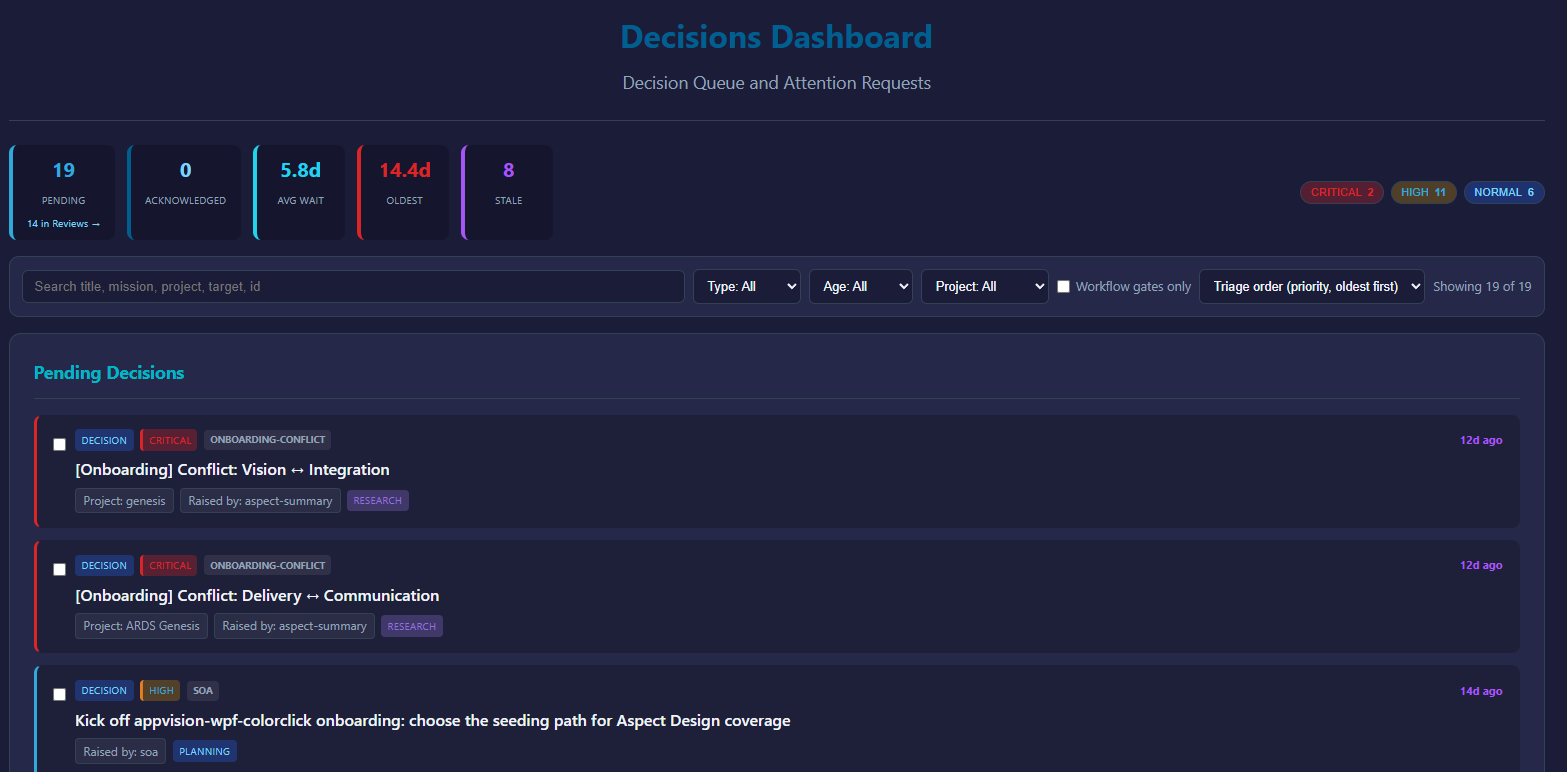
What lands here
Every card in Pending Decisions is something ARDS cannot (and will not) do on its own:
- Task approvals — a mission decomposed into tasks and waits for you to approve them before coders start.
- Workflow gates — a running workflow reached an approval gate. These cards carry a Workflow gate badge, and when a live run is sitting behind the gate, a second badge: A run is parked on this gate. A gate may declare its own named choices and even typed fields for you to fill in.
- Design-direction choices — a design task drafted a few visual directions and asks you to pick one. View them on the project page first (see Design canvases), then answer here.
- Clarifications — a coder is blocked and needs a question answered.
- Errors that need a human — for example a provider credential that failed.
Each card names its type (Decision, Approval, Input, Clarification, Error), its priority (Critical, High, Normal, Low), the mission and project it came from, what it is deciding on, who raised it, and how long it has waited.
One deliberate exception: mission code reviews are handled on the Reviews page, not here. The Pending tile points at them — N in Reviews — so the count stays honest without duplicating the review workflow.
Reading the queue
The strip at the top — Queue Statistics — shows Pending, Acknowledged, Avg Wait, Oldest, and Stale (items waiting more than 7 days), plus per-priority chips you can click to filter. Every figure is computed over exactly the rows rendered below it.
The toolbar cuts the queue down: a search box (Search title, mission, project, target, id), filters by type, age (Last 24h, 1-7 days, Stale (7d+)) and project, a Workflow gates only toggle, and a sort selector — Triage order (priority, oldest first) by default. Showing X of Y tells you what the filters are hiding; Reset brings everything back.
Acting on one decision
Click a card to open the Decision Details panel. It shows the full description, the context the decision was raised with (a gate over research branches shows each branch's output separately), and any choices the decision declares.
- Acknowledge marks the decision as seen — it moves from Pending to Acknowledged — but resolves nothing. Use it to signal "I know, I'll get to it."
- Resolve is the real action: pick a resolution, optionally add notes, and confirm. When a decision doesn't declare its own choices, the dropdown offers Proceed, Skip, Fail/Reject, and Defer: Proceed lets the gated work continue, Skip cancels the gated step, Fail/Reject fails it, Defer leaves it waiting. A workflow gate may instead declare its own named options and typed fields — required fields must be filled before Resolve enables.
Resolving is what unblocks the mission, task, or run that was waiting. See Lifecycle states, gates, and workflow governance.
Resolving several at once
When retries pile up you often face several byte-identical decisions. Tick their checkboxes and a bulk bar appears (N selected):
- Resolve selected applies one resolution to the whole selection — but only when the selected decisions are genuinely alike. Mixed selections are refused with an explanation: "These decisions are not alike. One verb cannot mean the same thing for all of them - select decisions of a single kind, or resolve them one at a time."
- Select all N alike widens the selection to every visible decision of the same kind — it selects, it never resolves.
- Some decisions can never be bulk-resolved: governance changes, separation-of-duties gates, and gates with required typed fields must each be opened and resolved on their own. The bar tells you which rail held and why.
- The receipt stays visible after the batch: "N resolved, M refused. The refused decisions are still selected and still pending."
There is no bulk acknowledge — acknowledging is a per-decision action in the details panel.
The habit
When a mission seems idle, check Decisions — it is usually waiting on you. Autonomy in ARDS is bounded by this queue: work stops at every human gate until you answer, so the queue's throughput is your throughput.
- Work Critical priority and the Oldest items first — those hold the most back.
- Refresh re-pulls the queue; Updated: HH:mm:ss shows when the view last did.
- A decision can also be resolved from the mission page it came from; this dashboard is just the aggregated, cross-mission view of the same queue.
- Decisions also arrive by email as attention-request notifications, but replying to the email doesn't drive action in v1 — click through to the dashboard to respond.